10 Terminal Tools That Will 10x Your Productivity
Discover fzf, ripgrep, zoxide, bat, and more CLI tools that replace slow workflows with instant results. Install commands and config included.
What you'll learn
- ✓Ten modern CLI tools that replace sluggish defaults
- ✓One-line install commands for macOS, Ubuntu, and Arch
- ✓Shell config snippets to wire everything together
- ✓Real-world usage patterns you will actually reach for daily
Prerequisites
- •A Unix-like terminal (macOS Terminal, iTerm2, Windows Terminal with WSL, or any Linux shell)
- •A package manager — Homebrew on macOS or
apt/pacmanon Linux
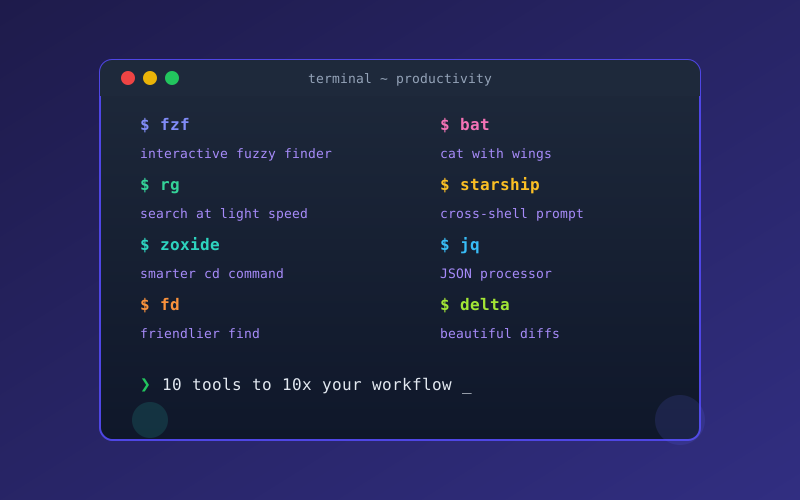
Most developers spend hours a day in the terminal yet never upgrade from the tools that shipped with their OS in 2003. Here are ten replacements that are faster, friendlier, and worth the five minutes it takes to install them.
1. fzf — Fuzzy Finder for Everything
fzf pipes any list into an interactive fuzzy search. Files, git branches, command history — anything.
# Install
brew install fzf        # macOS
sudo apt install fzf     # Ubuntu

# Search command history interactively
# (press Ctrl+R after installing fzf's key bindings)
fzf --bind 'ctrl-r:reload(history)'

# Find and open a file
vim $(fzf)
Add this to your .zshrc to replace the default Ctrl+R with fzf:
source <(fzf --zsh)2. ripgrep (rg) — Grep, but Fast
ripgrep respects .gitignore, skips binary files, and is routinely 5-10x faster than grep on large codebases.
brew install ripgrep

# Search for a function name across the project
rg "useState" --type tsx

# Case-insensitive search with context
rg -i "todo" -C 3
Once you use rg, you will never go back to grep -r.
3. zoxide — A Smarter cd
zoxide learns which directories you visit and lets you jump to them by partial name.
brew install zoxide

# Add to .zshrc
eval "$(zoxide init zsh)"

# Now instead of:
cd ~/projects/company/frontend/src/components

# You type:
z components
It ranks by frequency and recency, so z almost always guesses right.
4. bat — cat with Syntax Highlighting
bat is a drop-in replacement for cat that adds line numbers, syntax highlighting, and git diff markers.
brew install bat

# Use it like cat
bat src/index.ts

# Pipe into it
curl -s https://api.example.com/data | bat -l json
Alias it in your shell config:
alias cat="bat --paging=never"5. eza — A Modern ls
eza (the maintained fork of exa) adds color, icons, git status, and tree view to directory listings.
brew install eza

# Tree view with git status
eza --tree --level=2 --git

# Long format with icons
eza -la --icons
Suggested aliases:
alias ls="eza"
alias ll="eza -la --icons --git"
alias lt="eza --tree --level=2"
6. tldr — Man Pages for Humans
man pages are comprehensive but overwhelming. tldr gives you the 20% of flags you use 80% of the time.
brew install tldr

tldr tar
# Output:
#   tar -xvf archive.tar.gz        Extract a gzipped archive
#   tar -czvf archive.tar.gz dir/  Compress a directory
7. jq — JSON Swiss Army Knife
jq slices, filters, and transforms JSON on the command line.
brew install jq

# Pretty-print JSON
curl -s https://api.github.com/users/octocat | jq .

# Extract specific fields
cat data.json | jq '.users[] | {name: .name, email: .email}'

# Filter by condition
jq '.items[] | select(.price > 100)' products.json
If you work with APIs or JSON config files, jq saves you from opening a browser-based formatter every time.
8. fd — A Friendlier find
fd is a simple, fast alternative to find. It respects .gitignore and uses sensible defaults.
brew install fd

# Find all TypeScript files
fd -e ts

# Find files matching a pattern
fd "test" --type f

# Find and delete all .DS_Store files
fd -H ".DS_Store" -x rm {}
9. delta — Beautiful Git Diffs
delta makes git diff output readable with syntax highlighting, line numbers, and side-by-side view.
brew install git-deltaAdd to your ~/.gitconfig:
[core]
    pager = delta

[interactive]
    diffFilter = delta --color-only

[delta]
    navigate = true
    side-by-side = true
    line-numbers = true
Every git diff, git log -p, and git show now looks beautiful.
10. Starship — Cross-Shell Prompt
Starship is a fast, customizable prompt that works in Bash, Zsh, Fish, and PowerShell. It shows git branch, language versions, and command duration out of the box.
brew install starship

# Add to .zshrc
eval "$(starship init zsh)"
Create ~/.config/starship.toml for customization:
[character]
success_symbol = "[>](bold green)"
error_symbol = "[>](bold red)"

[git_branch]
symbol = " "

[nodejs]
symbol = " "
The 5-Minute Install Script
Here is everything at once for macOS:
brew install fzf ripgrep zoxide bat eza tldr jq fd git-delta starshipAnd for Ubuntu/Debian:
sudo apt install fzf ripgrep bat fd-find jq
# zoxide, eza, delta, starship, tldr — install via cargo or their official install scripts
cargo install zoxide eza tldr
Then add these lines to your ~/.zshrc:
eval "$(zoxide init zsh)"
eval "$(starship init zsh)"
source <(fzf --zsh)

alias cat="bat --paging=never"
alias ls="eza"
alias ll="eza -la --icons --git"
alias find="fd"
alias grep="rg"
Why This Matters
Each tool saves a few seconds per use. Multiply that by hundreds of daily invocations, and you reclaim meaningful time. More importantly, reducing friction makes you more willing to search, explore, and verify — habits that make you a better developer, not just a faster one.
Pick two or three from this list, install them today, and add more as the muscle memory builds.
Related articles
- Productivity Dotfiles Management: Sync Your Dev Setup Across Machines
Learn to manage dotfiles with GNU Stow, chezmoi, or a bare git repo. Bootstrap any new machine in minutes with your exact config.
- Productivity Debugging Strategies Every Developer Should Know
Master binary search debugging, rubber duck method, git bisect, stack traces, logging levels, and when to use print statements vs a debugger.
- Linux tmux for Terminal Multiplexing and Productivity
Master tmux for managing multiple terminal sessions, persistent remote work, and an efficient command-line workflow.
- Linux Linux tmux and screen Tutorial: Persistent Terminal Sessions
A practical guide to tmux and GNU screen for persistent shells, splits, and remote workflows, with side-by-side commands and tips for daily use.