Dotfiles Management: Sync Your Dev Setup Across Machines
Learn to manage dotfiles with GNU Stow, chezmoi, or a bare git repo. Bootstrap any new machine in minutes with your exact config.
What you'll learn
- ✓Why dotfiles management matters and what belongs in a dotfiles repo
- ✓Three approaches: GNU Stow, chezmoi, and bare git repos
- ✓How to organize your dotfiles directory for clarity
- ✓Writing a bootstrap script to set up a fresh machine in minutes
Prerequisites
- •Basic command-line comfort (terminal tools helps)
- •Git fundamentals — commits, push, pull, clone
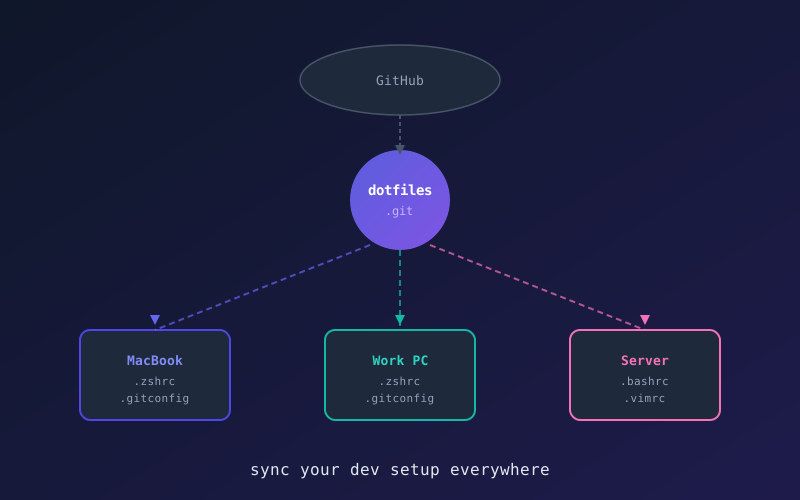
Every developer accumulates a constellation of config files: .zshrc, .gitconfig, .vimrc, Starship config, tmux settings, SSH config. These files live in your home directory, and losing them when you switch machines means hours of painful reconstruction.
Dotfiles management solves this. You put your config files in a git repo, create symlinks into your home directory, and push to GitHub. On a new machine, you clone and run one script. Done.
What Belongs in a Dotfiles Repo
Include: Shell config (.zshrc, .bashrc), git config (.gitconfig), editor settings (.vimrc, VS Code settings.json), terminal emulator config, tmux/screen config, tool configs (Starship, fzf, ripgrep), and your bootstrap script.
Exclude: Anything with secrets (SSH private keys, API tokens, .env files). Use a secrets manager or keep those in a separate, encrypted repo.
Approach 1: GNU Stow (Simplest)
GNU Stow is a symlink farm manager. You organize configs into “packages” (directories), and Stow creates the correct symlinks into your home directory.
Directory structure
~/.dotfiles/
├── zsh/
│   └── .zshrc
├── git/
│   ├── .gitconfig
│   └── .gitignore_global
├── starship/
│   └── .config/
│       └── starship.toml
├── vim/
│   └── .vimrc
└── tmux/
    └── .tmux.conf
Each top-level folder is a “package.” The internal structure mirrors where files should land relative to $HOME.
Usage
# Install
brew install stow        # macOS
sudo apt install stow    # Ubuntu

# Navigate to your dotfiles directory
cd ~/.dotfiles

# Symlink the zsh package
stow zsh
# This creates: ~/.zshrc -> ~/.dotfiles/zsh/.zshrc

# Symlink everything at once
stow */

# Remove symlinks for a package
stow -D vim
Stow is appealing because it has zero config files of its own. It uses directory structure as its API.
Gotcha
Stow fails if the target file already exists and is not a symlink. Back up or remove existing dotfiles before running stow for the first time:
mv ~/.zshrc ~/.zshrc.backup
stow zsh
Approach 2: chezmoi (Most Powerful)
chezmoi is a purpose-built dotfiles manager that handles templates, secrets, and machine-specific config.
# Install
brew install chezmoi

# Initialize
chezmoi init

# Add a file
chezmoi add ~/.zshrc

# Edit a managed file
chezmoi edit ~/.zshrc

# See what would change
chezmoi diff

# Apply changes
chezmoi apply
Why choose chezmoi over Stow?
chezmoi shines when you need templates — config that varies between machines:
# ~/.local/share/chezmoi/dot_gitconfig.tmpl
[user]
    name = "{{ .name }}"
    email = "{{ .email }}"

[core]
    editor = {{ if eq .chezmoi.os "darwin" }}code{{ else }}vim{{ end }}
When you run chezmoi init on a new machine, it prompts for values and renders the template. One dotfiles repo works across your personal Mac, work laptop, and Linux server.
chezmoi also supports encrypted secrets via age or gpg, so you can safely store API tokens.
When Stow is enough
If all your machines are similar and you do not need templating or secrets, Stow is simpler. If you manage configs across macOS and Linux with different paths and tools, chezmoi earns its complexity.
Approach 3: Bare Git Repo (No Dependencies)
This approach uses a bare git repo in your home directory with an alias. No extra tools required.
# Initialize
git init --bare $HOME/.dotfiles-repo

# Create an alias (add this to .zshrc too)
alias dotfiles='git --git-dir=$HOME/.dotfiles-repo --work-tree=$HOME'

# Ignore untracked files (your entire home directory)
dotfiles config --local status.showUntrackedFiles no

# Now use the alias like git
dotfiles add ~/.zshrc
dotfiles commit -m "add zsh config"
dotfiles remote add origin git@github.com:you/dotfiles.git
dotfiles push -u origin main
Setting up a new machine
git clone --bare git@github.com:you/dotfiles.git $HOME/.dotfiles-repo
alias dotfiles='git --git-dir=$HOME/.dotfiles-repo --work-tree=$HOME'
dotfiles checkout
dotfiles config --local status.showUntrackedFiles no
The bare repo approach is clever, but the alias is easy to forget, and status.showUntrackedFiles no hides potential issues. I recommend Stow or chezmoi for most people.
Writing a Bootstrap Script
Regardless of which approach you choose, write a bootstrap.sh script that automates a fresh machine setup:
#!/usr/bin/env bash
set -euo pipefail

echo "==> Installing Homebrew"
if ! command -v brew &>/dev/null; then
  /bin/bash -c "$(curl -fsSL https://raw.githubusercontent.com/Homebrew/install/HEAD/install.sh)"
fi

echo "==> Installing packages"
brew install \
  git stow zsh starship fzf ripgrep bat eza zoxide \
  node python go rust \
  tmux neovim

echo "==> Cloning dotfiles"
if [ ! -d "$HOME/.dotfiles" ]; then
  git clone git@github.com:you/dotfiles.git "$HOME/.dotfiles"
fi

echo "==> Linking dotfiles"
cd "$HOME/.dotfiles"
stow */

echo "==> Setting default shell to zsh"
chsh -s $(which zsh)

echo "==> Done. Open a new terminal to see changes."
Store this script in your dotfiles repo and make it executable. On a new machine, your entire workflow becomes:
git clone git@github.com:you/dotfiles.git ~/.dotfiles
cd ~/.dotfiles
./bootstrap.sh
Organizing for Clarity
A well-organized dotfiles repo looks like this:
~/.dotfiles/
├── bootstrap.sh
├── README.md
├── Brewfile              # brew bundle list
├── git/
│   ├── .gitconfig
│   └── .gitignore_global
├── zsh/
│   ├── .zshrc
│   └── .zsh/
│       ├── aliases.zsh
│       ├── functions.zsh
│       └── exports.zsh
├── starship/
│   └── .config/starship.toml
├── vscode/
│   └── .config/Code/User/settings.json
└── macos/
    └── defaults.sh       # macOS system preferences
Split your .zshrc into focused files (aliases.zsh, exports.zsh, functions.zsh) and source them. This makes each piece easy to find and edit.
Which Approach Should You Use?
| Feature | GNU Stow | chezmoi | Bare Git |
|---|---|---|---|
| Dependencies | stow | chezmoi | none |
| Templates | No | Yes | No |
| Secret management | No | Yes (age/gpg) | No |
| Learning curve | Low | Medium | Low |
| Multi-OS support | Manual | Built-in | Manual |
Start with Stow. It takes ten minutes to set up and handles 90% of use cases. If you later need templates or secrets, migrate to chezmoi. Avoid the bare git approach unless you specifically want zero dependencies.
The best dotfiles setup is the one you actually maintain. Pick a method, commit your configs today, and your future self on a new machine will thank you.
Related articles
- Productivity Debugging Strategies Every Developer Should Know
Master binary search debugging, rubber duck method, git bisect, stack traces, logging levels, and when to use print statements vs a debugger.
- Productivity 10 Terminal Tools That Will 10x Your Productivity
Discover fzf, ripgrep, zoxide, bat, and more CLI tools that replace slow workflows with instant results. Install commands and config included.
- Productivity Git Workflow Strategies for Teams
Compare Gitflow, trunk-based, GitHub Flow, and Ship/Show/Ask. Learn which git workflow fits your team, with branch naming and PR conventions.
- Git Finding Bugs with Git Bisect: A Practical Guide
Use git bisect to binary search through your commit history and pinpoint the exact commit that broke your code. Covers manual, automated, and advanced bisect workflows.