Airflow XComs: Passing Data Between Tasks
Understand Airflow XComs for inter-task communication including push/pull patterns, Jinja templates, size limits, and custom backends for production use.
What you'll learn
- ✓Understand what XComs are and how they work
- ✓Push and pull values between tasks
- ✓Use XComs in Jinja templates
- ✓Work within XCom size constraints
- ✓Implement custom XCom backends for large data
Prerequisites
- •Airflow DAGs and task basics
- •Python fundamentals
- •Basic SQL knowledge (for backend discussion)
Why Tasks Need to Communicate
Before understanding XComs, you need to understand a fundamental design decision in Airflow: every task runs in isolation. Task A does not share memory with Task B. They might even run on different machines in different time zones. This isolation is intentional — it makes tasks independently retryable, parallelizable, and fault-tolerant. If Task B fails, Airflow can re-run it without touching Task A.
But isolation creates a problem. What happens when Task B needs something Task A produced? Maybe Task A extracted data and Task B needs to know where that data was saved. Maybe Task A ran a query and Task B needs the row count to decide what to do next. In any real-world pipeline, tasks need to share small pieces of information.
Think of it like passing notes between coworkers in different offices. You cannot just hand someone a piece of paper because you are not in the same room. Instead, you write a note, put it in a shared mailbox, and the other person picks it up when they are ready. That shared mailbox is XCom.
What Are XComs?
XCom (short for “cross-communication”) is Airflow’s built-in mechanism for tasks to exchange small pieces of data. When a task produces a value, it “pushes” that value to the XCom table in Airflow’s metadata database. When another task needs that value, it “pulls” it from the same table.
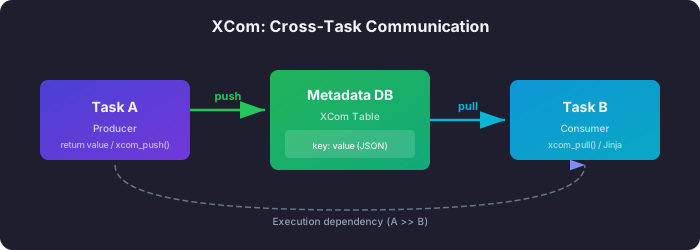
Every XCom entry is stored with identifying metadata so Airflow knows exactly where it came from:
- key — A string label (default:
return_value) - value — The actual data, serialized as JSON
- dag_id — Which DAG produced it
- task_id — Which task produced it
- run_id — Which DAG run produced it
This identification scheme means there is no ambiguity. When Task B pulls a value, it specifies exactly which task, from which DAG, and optionally which key. There is no chance of accidentally reading someone else’s data.
Pushing Values to XCom
There are two ways to push values to XCom, and understanding when to use each one will save you from writing unnecessary code.
Method 1: Return Values (Recommended)
The simplest approach is to just return a value from your task function. Airflow automatically captures the return value and stores it in XCom with the key return_value. This is the recommended approach for most use cases because it keeps your code clean — you write a normal Python function that returns a result, and Airflow handles the rest.
from airflow.operators.python import PythonOperator

def extract_data(**kwargs):
    """Return value is automatically pushed with key 'return_value'."""
    records = [
        {"id": 1, "name": "Alice", "amount": 150.00},
        {"id": 2, "name": "Bob", "amount": 230.50},
    ]
    return records

extract_task = PythonOperator(
    task_id="extract_data",
    python_callable=extract_data,
)
Method 2: Explicit Push with ti.xcom_push()
Sometimes a single task needs to produce multiple distinct values that downstream tasks will consume independently. In that case, you use ti.xcom_push() to store each value under a different key. This is more verbose but gives you fine-grained control over what gets stored and how it is labeled.
Think of it as the difference between sending one letter with everything in it (return value) versus sending three separate letters, each clearly labeled (explicit push). The second approach is more work but makes it easier for recipients to grab exactly what they need.
def extract_and_validate(**kwargs):
    ti = kwargs["ti"]
    records = fetch_from_api()
    stats = {
        "total_records": len(records),
        "null_count": sum(1 for r in records if r.get("amount") is None),
    }

    ti.xcom_push(key="raw_records", value=records)
    ti.xcom_push(key="extraction_stats", value=stats)
Pulling Values from XCom
Pulling values is the other side of the coin. You use ti.xcom_pull() to retrieve values that upstream tasks have pushed. The method requires the task_ids parameter to know which task’s output you want. If you pushed with a custom key, you also specify the key parameter — otherwise it defaults to return_value.
The important thing to understand is that xcom_pull is scoped to the current DAG run by default. It will only find values from tasks that ran as part of the same pipeline execution. This prevents data from different runs from leaking into each other.
def transform_data(**kwargs):
    ti = kwargs["ti"]

    # Pull the return_value from a specific task
    records = ti.xcom_pull(task_ids="extract_data")

    # Pull a specific key from another task
    stats = ti.xcom_pull(task_ids="extract_and_validate", key="extraction_stats")

    # Pull from multiple tasks at once (returns a list)
    results = ti.xcom_pull(task_ids=["task_a", "task_b", "task_c"])

    transformed = [
        {**record, "amount_normalized": record["amount"] / stats["total_records"]}
        for record in records
    ]
    return transformed
Using XComs in Jinja Templates
One of the most convenient features of XComs is that you can access them directly in Jinja templates, without writing any Python. Any operator parameter that supports templating (which includes most string parameters) can pull XCom values inline.
This is especially powerful with operators like BashOperator and EmailOperator, where your logic lives in a command string or HTML body rather than a Python function. Instead of writing a PythonOperator just to read an XCom and pass it to a shell command, you can embed the XCom pull directly in the template.
from airflow.operators.bash import BashOperator
from airflow.operators.email import EmailOperator

process_file = BashOperator(
    task_id="process_file",
    bash_command="python /scripts/process.py --input '{{ ti.xcom_pull(task_ids=\"extract_data\") }}' ",
)

send_notification = EmailOperator(
    task_id="send_notification",
    to=["team@company.com"],
    subject="Pipeline Report - {{ ds }}",
    html_content="""
    <h2>Extraction Complete</h2>
    <p>Records: {{ ti.xcom_pull(task_ids='extract_and_validate', key='extraction_stats')['total_records'] }}</p>
    """,
)
The syntax can get a bit verbose for complex expressions, but it saves you from writing intermediate PythonOperator tasks just to format strings.
XCom Limitations: Understanding the Design Philosophy
XComs are deliberately designed for small data. This is not a limitation born from laziness — it is a conscious architectural decision that you need to understand to use Airflow effectively.
Why Small Data Only?
Every XCom value is stored in Airflow’s metadata database — the same database that stores DAG definitions, task states, logs, and scheduling information. This database is the beating heart of your Airflow installation. If you start pushing megabytes of data through XCom, you are effectively turning your scheduling database into a data warehouse, and it is not built for that. The result is slow queries, high memory usage during serialization, and sluggish DAG run cleanup.
The practical size limits depend on your database backend:
| Database | Maximum XCom Size |
|---|---|
| PostgreSQL | ~1 GB (BYTEA column) |
| MySQL | ~64 KB (default TEXT) |
| SQLite | ~2 GB (but never do this) |
The recommended practical limit is 48 KB. Just because your database can store more does not mean it should.
What Cannot Be Serialized
XComs are JSON-serialized by default. This means you cannot pass database connections, file handles, running threads, pandas DataFrames (directly), numpy arrays, or any other non-JSON-serializable Python object. If you try, Airflow will raise a serialization error.
The Right Pattern: Store Data Externally, Pass References
This is the single most important XCom pattern to learn. For any data larger than a few kilobytes, do not put the data itself in XCom. Instead, store the data in an appropriate external system (S3, GCS, a database, a file system) and put the path or reference in XCom.
Think of it this way: you would not mail a filing cabinet to a coworker. You would put the files in a shared storage room and mail them the room number and shelf location. XCom is the mail — it carries the address, not the payload.
This pattern is so fundamental to good Airflow design that it is worth seeing in full.
from airflow.decorators import dag, task
from datetime import datetime
import json

@dag(dag_id="xcom_best_practice", start_date=datetime(2026, 1, 1), schedule="@daily", catchup=False)
def xcom_best_practice():

    @task()
    def extract_large_dataset(ds=None):
        """Store data in S3, return only the reference."""
        import boto3
        records = [{"id": i, "value": i * 1.5} for i in range(100000)]

        s3 = boto3.client("s3")
        key = f"pipeline/extracted/{ds}/data.json"
        s3.put_object(Bucket="data-lake", Key=key, Body=json.dumps(records))

        # This is what goes into XCom -- tiny metadata, not 100K records
        return {"bucket": "data-lake", "key": key, "record_count": len(records)}

    @task()
    def transform(data_ref: dict):
        """Read from S3 using the reference, transform, write back."""
        import boto3
        s3 = boto3.client("s3")
        response = s3.get_object(Bucket=data_ref["bucket"], Key=data_ref["key"])
        records = json.loads(response["Body"].read())

        transformed = [{**r, "value_squared": r["value"] ** 2} for r in records]

        output_key = data_ref["key"].replace("extracted", "transformed")
        s3.put_object(Bucket=data_ref["bucket"], Key=output_key, Body=json.dumps(transformed))

        return {"bucket": data_ref["bucket"], "key": output_key, "record_count": len(transformed)}

    @task()
    def load(data_ref: dict):
        print(f"Loading {data_ref['record_count']} records from {data_ref['key']}")

    data_ref = extract_large_dataset()
    transformed_ref = transform(data_ref)
    load(transformed_ref)

xcom_best_practice()
Notice what flows through XCom: a dictionary with three fields totaling maybe 100 bytes. The actual data — potentially hundreds of megabytes — lives in S3 where it belongs. Each task reads from and writes to S3, and only passes the “address” to the next task via XCom.
Custom XCom Backends
For organizations that want to automate the “store externally, pass references” pattern, Airflow supports custom XCom backends. Instead of manually writing data to S3 and passing the path, a custom backend does this transparently. When you push a value to XCom, the backend intercepts it, stores the actual data in S3 (or GCS, or wherever you configure), and stores only a reference in the metadata database.
This is particularly useful when you have many teams writing DAGs and you cannot guarantee everyone will follow the best practice pattern. With a custom backend, even a task that naively returns a large dictionary will have its data routed to external storage automatically.
You configure the backend in airflow.cfg, and several providers ship with pre-built backends.
[core]
xcom_backend = airflow.providers.amazon.aws.xcom_backend.S3XComBackend
Consider a custom backend when your XCom values regularly exceed 48 KB, you want automatic lifecycle management through S3 expiration policies, you need encryption at rest for sensitive data, or you want to reduce load on the metadata database. For most teams getting started, the manual “store path in XCom” pattern is simpler and more transparent. Custom backends shine at scale.
XCom Patterns and Anti-Patterns
To wrap up the conceptual discussion, here is a quick reference for what should and should not flow through XCom.
Good patterns — small, serializable metadata:
- File paths:
{"path": "s3://bucket/data.parquet", "rows": 50000} - Configuration:
{"batch_size": 1000, "start_offset": 0} - Status information:
{"status": "success", "duration_seconds": 45}
Anti-patterns — things that will cause problems:
- Large DataFrames or dictionaries with thousands of rows
- Binary data like images or compressed files
- Credentials or secrets (XCom values are stored in plain text in the database and visible in the UI)
Debugging XComs
When things go wrong with XCom values, you have two main debugging tools.
The Airflow UI has an XCom browser at Admin > XComs where you can view all stored values, filtered by DAG ID, task ID, and key. This is your first stop when a downstream task is receiving unexpected data.
The Airflow CLI also provides commands for inspecting and managing XCom values.
# List XComs for a specific DAG run
airflow xcom list --dag-id my_dag --run-id scheduled__2026-07-11T00:00:00+00:00

# Get a specific value
airflow xcom get --dag-id my_dag --task-id extract --key return_value --run-id scheduled__2026-07-11T00:00:00+00:00

# Delete a specific value
airflow xcom delete --dag-id my_dag --task-id extract --key return_value --run-id scheduled__2026-07-11T00:00:00+00:00
XCom values are automatically cleared when you clear a task instance, so re-running a task will overwrite its previous XCom output.
Next Steps
XComs are the connective tissue of Airflow pipelines. They enable tasks to share results, pass configuration, and coordinate work — all while maintaining the isolation that makes Airflow reliable. The key principles to carry forward:
- Keep XCom values small: store references to data, not the data itself
- Use return values for simplicity; use explicit push/pull only when you need multiple keys from one task
- Leverage Jinja templates to access XComs in operator parameters without writing Python
- Consider custom backends when operating at scale with many teams and large data volumes
Here is where to go from here:
- Learn how the TaskFlow API simplifies XCom usage with implicit passing — no more manual push/pull calls
- Explore the Operators Guide to understand the operators that produce and consume XCom values
- Review Sensors to see how waiting tasks can pass results downstream via XCom
Related articles
- Airflow Airflow Architecture Explained: Components and Executors
Understand the architecture of Apache Airflow -- Scheduler, Web Server, Metadata Database, Executors, and Workers -- and learn which executor fits your workload.
- Airflow Airflow Connections and Variables: Managing Configuration
Master Airflow connections for external system credentials and variables for runtime configuration, including secrets backends for production deployments.
- Airflow Branching and Conditional Logic in Apache Airflow
Learn how to implement conditional workflows in Airflow using BranchPythonOperator, ShortCircuitOperator, trigger rules, and the TaskFlow branch decorator.
- Airflow Airflow Operators Guide: Built-in, Provider, and Custom
Master Apache Airflow operators from BashOperator to building your own custom operators with template fields and provider packages.